
PerfectTablePlan v7 is a paid upgrade for customers with a v6 (or earlier) licence. See our v7 upgrade FAQ for details.

PerfectTablePlan v7 is a paid upgrade for customers with a v6 (or earlier) licence. See our v7 upgrade FAQ for details.
Note that the screenshots may not match the exact appearance on your Mac, depending on which version of macOS you have, which browser you are using, the version of PerfectTablePlan and how your Mac is configured.
1. If you have an older Mac please check that it meets the modest system requirements for running PerfectTablePlan.
2. Click on the Download button above, the disk image file should start downloading.
3. If the contains an application warning appears, click on Continue.
4. Once the download has completed, double click on the .dmg file. Usually it will be in your Downloads folder.
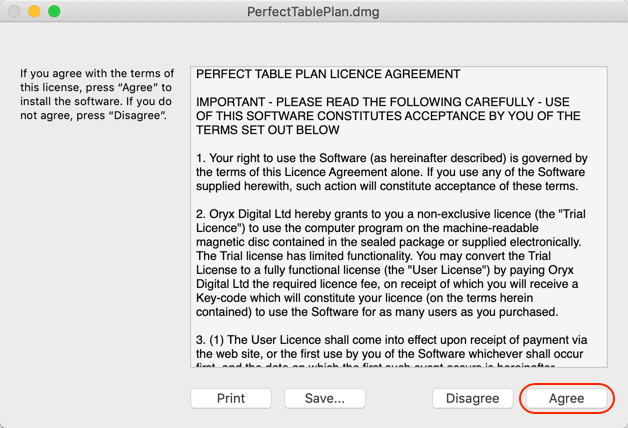
5. The PerfectTablePlan licence window will appear. Click on the Agree button to accept the licence and mount the disk image.
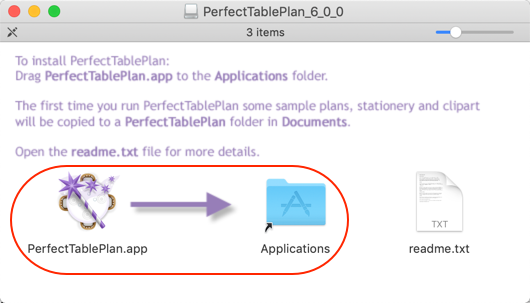
6. The contents of the disk image should appear in a new Finder window. Drag the PerfectTablePlan.app file in the disk image to the Applications folder.
7. Optionally rename PerfectTablePlan.app in the Applications folder to include the version number, e.g. PerfectTablePlan_7_2_1.app.
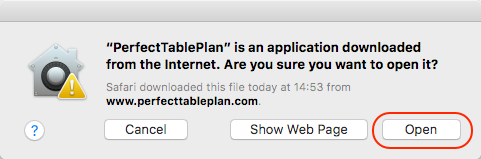
8. To start the application, double click on the PerfectTablePlan icon in the Applications folder in the Finder. If a warning "PerfectTablePlan.app" is an application downloaded from the Internet. Are you sure you want to open it? appears, click Open.
If you have any problems please consult the Mac installation troubleshooting page.
Note You can uninstall PerfectTablePlan at any time with a few mouse clicks.
PerfectTablePlan is also available for Windows.